


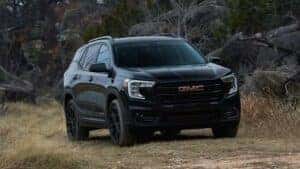
How To Remote Start Your GMC Terrain With A Key Fob Or Mobile?
On a hot day in Fort Worth, Texas, there’s nothing better than stepping into a car that’s already running with the air conditioning on full blast. Fortunately, many GMC Terrains come with remote start, so you can heat or cool the cabin to your preferences before you even leave the house. You have the option of using the vehicle’s key fob or the GMC mobile app to start your Terrain remotely. If you need a refresher on how it works, here’s a helpful guide with step-by-step instructions. View our inventory of New GMCs or if you have any questions, give us a call at (817)-632-8800.
GMC Terrain Remote Start With a Key Fob
If you have the key fob, you can easily start your GMC Terrain remotely. Here are the steps to turn on the vehicle with the key fob.
- Make sure the Terrain is locked, with the doors closed.
- Press the lock button on the key fob.
- Press and hold the remote start button for four seconds or longer. This button is usually indicated by a circular arrow on the key fob.
- The Terrain’s lights may flash, and the engine will start.
These steps may vary slightly between different model years, so check your owner’s manual for exact instructions. Once the Terrain has started, it will run for up to 15 minutes. If you want to cancel the remote start before then, you can turn the SUV off by pressing the remote start button for two to three seconds.
GMC Terrain Remote Start With a Mobile Device
In addition to the key fob, the myGMC mobile app allows you to start your Terrain remotely. Using remote start through the app requires you to have an OnStar subscription. Follow these steps to use remote start through the mobile app.
- Download the myGMC app through the App Store or Google Play.
- Create a new account or sign in. Make sure you’ve linked your Terrain to the app. You may need the vehicle identification number (VIN) to add your Terrain to the app.
- Once you’ve connected your Terrain, navigate to the app’s home screen. Press the power button. This button is a circle with a line inside of it.
- Confirm the request, if needed. A countdown will appear, and the GMC Terrain will start running.
It’s just as easy to turn off your Terrain in the app if you want to cancel the remote start. Simply press the power button again. If you don’t get into the vehicle before the countdown ends, the vehicle will shut off automatically.
Precautions and Safety Measures
While remote start can be beneficial in hot or cold weather, make sure you follow some general safety tips when using this function. Here are some precautions and safety measures to take when using remote start for your Terrain, either with the key fob or through the app.
Park Outdoors
When using remote start, make sure the Terrain is parked in a safe, well-ventilated area. Never start the SUV if it’s inside an enclosed garage, since this can cause carbon monoxide poisoning.
Check the Fuel Level
Refrain from using remote start if the Terrain is low on fuel. It can run out of gas while running remotely.
Protect Your Pets
Your Terrain will turn off automatically 15 minutes after you activate remote start. If you plan to leave pets in the car with the SUV running, make sure you’re gone no longer than 15 minutes. In most cases, it’s probably safer to leave them at home.
Turn Off Electronic Systems
Make it a habit to turn off electronic systems and lights every time you exit the Terrain. If you leave them on and start the SUV remotely later, it can drain the vehicle battery.
Comply With Local Laws
Know the laws regarding remote start where you live. Some states and jurisdictions limit the amount of time a car can idle without anyone inside. Always comply with local laws.
Compatibility and Connectivity
If you’ve never used remote start before, you may not know if your Terrain has this capability. Not every GMC Terrain comes with the remote start function. Base trims and older models may not offer this feature. Check the owner’s manual for your Terrain to determine whether it has remote start capability.
When in doubt, you can always ask the helpful service technicians at Hiley Buick GMC of Fort Worth when you bring your Terrain in for routine service. We can check out your vehicle and explain how to use the remote start feature, if your Terrain has it.
If you’re having trouble with the remote start function through the myGMC app, it might be worth checking your internet connection. It’s important to have a stable Wi-Fi connection when using the remote start button on the mobile app.
Additional Features With the GMC Mobile App
Of course, remote start isn’t the only great feature you get on the myGMC mobile app. With this app, you can perform a variety of functions to make your drive easier and more convenient. In addition to remote start, the myGMC app allows you to:
- Lock or unlock your Terrain remotely.
- Sound the horn or flash the lights for identification, like in a crowded parking lot.
- View the odometer.
- Check the fuel level and range.
- See the Terrain’s average fuel economy.
- Monitor the tire pressure and remaining engine oil.
- Manage hot spot settings, if you have an active data plan.
- Review the owner’s manual and see frequently asked questions.
- Schedule vehicle service with your preferred dealer.
- Call for roadside assistance, if you have an active OnStar safety plan.
Access Remote Start for Your GMC Terrain
It’s easy and convenient to start your GMC Terrain remotely. By using the key fob or the mobile app, you can heat or cool the SUV before your drive begins. Remember to follow safety precautions and local regulations when using this functionality. Have questions about remote start or the other functions of the myGMC mobile app? We can help. At Hiley Buick GMC of Fort Worth, we take pride in assisting our customers with all aspects of vehicle ownership. Contact us for information about how you can make the most of your GMC Terrain’s connected services.
0 comment(s) so far on How To Remote Start Your GMC Terrain With A Key Fob Or Mobile?